




To set up Claude Cowork correctly takes about 30 minutes. Not doing it correctly means starting every session from zero, getting generic output, and concluding the tool is overhyped. Cowork has no memory between sessions by default. It does not know who you are, what you do, or how you want work delivered. The 30-minute setup described here changes that permanently.
This guide covers every step: installation on Mac and Windows, the folder structure that keeps your files safe, the context files that give Cowork a brain, global instructions, plugins, connectors, Dispatch for mobile control, scheduled tasks, and the safety rules that prevent the mistakes early adopters learned the hard way.
Want AI working in your marketing stack, not just answering questions?
We build AI workflows for marketing teams that actually execute tasks, not just generate text. See what’s possible.
| Default Cowork (No Setup) | Cowork Properly Configured |
|---|---|
| Starts every session fresh with zero context | Loads your identity, voice, and priorities automatically |
| Generic outputs that need heavy editing | Outputs that match your voice and naming conventions |
| Has access to everything on your machine | Scoped to one safe folder with clear boundaries |
| Only works when you are sitting at your desk | Accepts tasks from your phone via Dispatch |
The Takeaway: Cowork out of the box is mediocre. Cowork with 30 minutes of configuration is a different tool entirely.
💡 Pro Tip: The single biggest lever in Cowork is not the model, the plugins, or the connectors. It is context. Users who build good context files consistently report better results than users on higher-priced plans without them. Build the files first. Everything else compounds on top.
Table of Contents
→ What Claude Cowork Actually Is
→ Requirements and Pricing Before You Start
→ Step 1: Install Claude Desktop
→ Step 2: Build Your Folder Structure
→ Projects vs One-Time Folder Access: Which Should You Use?
→ Step 3: Create Your Three Context Files
→ Step 4: Write Your Global Instructions
→ Step 5: Install Plugins and Connect Your Tools
→ Step 6: Run Your First Task the Right Way
→ Step 7: Set Up Scheduled Tasks
→ Step 8: Set Up Dispatch for Mobile Control
→ Safety Rules You Should Read Before You Touch Any Files
→ The Bottom Line on How to Set Up Claude Cowork
→ FAQ: Common Questions About Claude Cowork Setup
What Claude Cowork Actually Is
Claude Cowork is a desktop AI agent that executes multi-step tasks on your computer, not a chatbot. The distinction matters because the setup is completely different. Chat expects a back-and-forth conversation. Cowork expects you to describe an outcome, step away, and return to finished work.
Anthropic launched Cowork on January 12, 2026 as a research preview. It went generally available on April 9, 2026 for macOS and Windows. The underlying architecture is the same as Claude Code, the coding agent developers use in the terminal. Cowork packages that power in a desktop GUI so no command-line experience is required.
Cowork runs in a sandboxed Linux virtual machine on your computer. Files mount into the VM from folders you explicitly grant access to. Nothing outside those folders is visible to Cowork. Model inference happens in Anthropic’s cloud, so a live internet connection is required throughout every session.
When you give Cowork a task, it analyzes the request, builds a plan, breaks complex work into subtasks, runs those subtasks in parallel where possible, and delivers finished outputs to your file system. You maintain visibility into every step and can steer mid-task if something looks wrong.
💡 Pro Tip: Think of Cowork vs chat as the difference between delegating a project and asking a colleague a question. Chat = ask a question, get an answer. Cowork = hand off a project with a clear outcome, step away, review the deliverable. Use chat for anything that takes under five minutes. Use Cowork when you want to do something else while the work gets done.
Requirements and Pricing Before You Start
Before you set up Claude Cowork, you need a paid Claude subscription and the Claude Desktop app. The free tier does not include access. Here is what you need to know before downloading anything.
| Plan | Price and Cowork Suitability |
|---|---|
| Pro | $20/month. Cowork access included. Good for occasional use (3-5 light tasks per day before hitting limits). |
| Max 5x | $100/month. Realistic minimum for daily Cowork use. Each task burns 50-100x more tokens than chat. |
| Max 20x | $200/month. For power users running back-to-back agentic sessions all day. |
| Team / Enterprise | $25-$125/seat/month. Adds admin controls, plugin management, and OpenTelemetry monitoring. |
💡 Pro Tip: Cowork burns tokens fast. A single “research a topic, draft a report, save as a Word doc” task can use the equivalent of 50 to 100 chat messages. If you plan to use Cowork as a daily driver, Pro will hit its limits quickly. Max 5x is the practical entry point for serious use. Start on Pro, upgrade when you hit limits regularly.
System requirements: macOS with Apple Silicon (M1 or newer) or Intel with virtualization support. Windows 10 version 1909 or later (x64 only), or Windows 11. Hyper-V must be enabled on Windows. Linux is not supported. Anthropic provides a readiness check tool at claude.com/download if you want to verify compatibility before installing.
Step 1: Install Claude Desktop
The first step to set up Claude Cowork is downloading Claude Desktop from claude.com/download and signing in with your paid account. The installer walks you through permissions automatically. Once signed in, look for the mode selector in the sidebar. You will see “Chat” and a “Cowork” tab. Click Cowork to switch modes to Tasks.
On first launch, Cowork sets up the sandboxed Linux virtual machine. This downloads approximately 2GB and takes a few minutes depending on your connection. The app displays “Setting up Claude’s workspace” during this process. Wait for it to complete before starting anything.
Windows users: If you see “VM service not running” after installation, check that Hyper-V is enabled in Windows Features. Also verify you are on Claude Desktop version 1.1.4328 or later. Earlier versions had a connection bug on Windows 11 Home that blocked Cowork from launching.
On macOS, Cowork uses Apple’s Virtualization Framework with an ARM64 Linux environment. On Windows it uses Hyper-V. Both approaches run the sandboxed VM locally. No files leave your machine except for the text sent to Anthropic’s cloud for model inference.
Step 2: Build Your Folder Structure
The folder structure for Cowork follows a specific sequence and the sequence matters. Do not create all your folders upfront and then try to point Cowork at them. Cowork creates its own project folder when you create a project, and you build your working folders inside that. Here is the exact order that works.
What You Create First (Before Opening Cowork)
Open Finder (Mac) or File Explorer (Windows) and create two folders only:
- [Your local drive]/Claude-Work/ — your master working directory
- [Your local drive]/Claude-Work/Projects/ — the folder you will point Cowork at when creating your project
Where to create Claude-Work: On a Mac, Documents works well. On a Windows PC, use your local C: drive or your user folder (C:\Users\[YourName]\). The key is that the folder lives on your local drive, not in a cloud sync folder.
⚠️ Important: Create your Claude-Work folder on your local drive for the most reliable results. On a Mac, Documents works well. On Windows, use your local C: drive or user folder (C:\Users\[YourName]\).
Create Your Project in Cowork
Open Cowork, click “Work in a project” at the bottom of the task input area, then select “Create new project.” Give your project a name — something like “Content Work” or your business name. When the file picker opens, navigate to Documents/Claude-Work/Projects and click Open.

Cowork will automatically create a subfolder inside Projects named after your project. So if you named it “Content Work” you will now have Documents/Claude-Work/Projects/Content Work/ on your Mac. That project folder is your working environment for everything that follows.
⚠️ Important: Point Cowork at your Projects subfolder, not the Claude-Work root folder. If you select Claude-Work itself, Cowork creates a project folder at the root level and your folder structure gets messy fast.

Create Your Subfolders Inside the Project
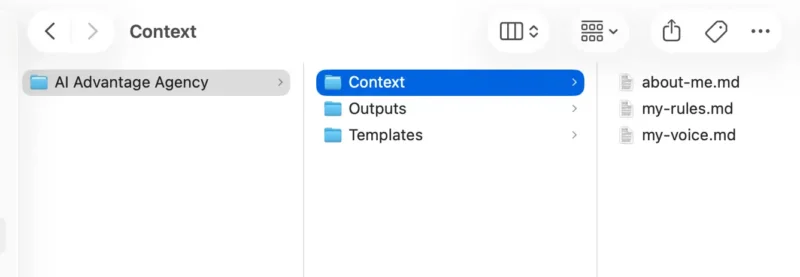
Now open the project folder Cowork just created and build your working structure inside it. Create these three subfolders manually:
- Context/ — your three context files live here (we will create these in Step 3)
- Outputs/ — where Cowork saves all finished work
- Templates/ — reference examples Cowork can use for style and format
Two additional folders will appear automatically over time. Do not create these manually:
- Artifacts/ — Cowork creates this when it generates live artifacts
- Scheduled/ — Cowork creates this when you set up scheduled tasks
How to Revoke Folder Permissions
To remove a persistent project’s folder access, go to Settings > Cowork in Claude Desktop. Scroll down past the Dispatch toggle and Global Instructions section to find the Folder Permissions list. Select the folder you want to remove and revoke access. The change takes effect immediately.
💡 Pro Tip: Your final folder structure should look like this: Documents/Claude-Work/Projects/[Your Project Name]/Context/, Documents/Claude-Work/Projects/[Your Project Name]/Outputs/, and Documents/Claude-Work/Projects/[Your Project Name]/Templates/. If it does not look like this, delete the project and start the sequence again from the top.
Projects vs One-Time Folder Access: Which Should You Use?
This is the decision most people skip and it shapes how useful Cowork becomes over time. The “Work in a project” dropdown gives you two paths. They are not interchangeable.
| Create New Project | Choose a Folder (One-Time) |
|---|---|
| Persistent. Cowork remembers the folder and history across sessions. | Resets when the task ends. No persistent access. |
| For ongoing recurring work tied to a specific folder | For standalone tasks or folders outside your main project |
| Context, files, and outputs accumulate over time | Clean slate every time. Nothing carries over. |
| Right choice for your primary working folder | Right choice for trying something new or a one-off task |
The practical rule: most people need exactly one project, their primary working folder. Everything else uses one-time folder access.
A project makes sense when the work is ongoing, the folder is permanent, and you want Cowork to build context over time. Your content work, a key client folder, your templates — those belong in a project. A one-off task, even a complex one, does not need a project. One-time access is cleaner and leaves no persistent permissions behind.
One thing worth knowing before you start: not every session in Cowork belongs in a project. A conversation-style task — research, brainstorming, answering a question — does not need folder access at all. Use the project or folder options only when Cowork actually needs to read or write files. Otherwise you are granting access that serves no purpose.
💡 Pro Tip: If you created a project early on during exploration and it was more of a chat session than real file work, delete it and start fresh. A project built on the right folder structure with proper context files is a completely different experience than one created before you knew what you were doing. Clean setup beats accumulated mess every time.
Step 3: Create Your Three Context Files
Context files are the single biggest lever when you set up Claude Cowork. Cowork has no memory between sessions by default. Every session starts fresh. Context files fix this permanently by giving Cowork a set of documents to read at the beginning of every task. Three files cover most of what it needs.
Create each file as a plain text markdown file (.md) and save it directly inside your Claude-Work/Context folder. When you are done you should have three files at exactly these paths: Claude-Work/Context/about-me.md, Claude-Work/Context/my-voice.md, and Claude-Work/Context/my-rules.md. Keep each file under 2,000 words. If they grow too large, Cowork starts summarizing them loosely instead of reading them carefully. Lean and specific beats comprehensive and bloated.
File 1: about-me.md
This file tells Cowork who you are before every task. Write it as if you are briefing a new assistant on their first day. Include your role and what you actually do day-to-day (not a resume summary), the company or business you work for, the current priorities or projects you are focused on, and any decisions already made that Cowork should build on rather than question.
Do not write this as a biography. Write it as operational context. What does Cowork need to know to make better decisions on your behalf? What would a smart assistant get wrong if they did not know these things about you?
File 2: my-voice.md
This file tells Cowork how you communicate. Include your writing tone, the phrases you use and the ones you hate, and at least two or three examples of writing you have done that Cowork should treat as style references. If you have written posts, reports, or emails you consider representative of your best work, paste short excerpts here with a note explaining why they work.
Be specific about what you do not want. Generic instructions like “write conversationally” produce generic outputs. Specific instructions like “never use phrases like ‘it is worth noting’ or ‘in today’s landscape'” produce noticeably different results within a single session.
File 3: my-rules.md
This file sets operating rules for how Cowork should behave inside your workspace. The most important rules to establish upfront: ask before acting if the goal is unclear, always save outputs in the Outputs folder, never delete files without explicit confirmation, create a plan and show it before executing any task longer than five minutes, and flag uncertainty rather than filling gaps with assumptions.
Once all three files exist, update your global instructions (Step 4) to tell Cowork to read them at the start of every session. That link between the context files and the global instructions is what makes the system persistent.
💡 Pro Tip: Use Cowork itself to build your context files. Start a Cowork session, select your Claude-Work folder, and prompt: “You are helping me build my context files. Interview me one question at a time about my role, voice, and working preferences, then create about-me.md, my-voice.md, and my-rules.md in the Context folder.” Cowork will ask the right questions and write the files for you. Takes about ten minutes and produces better files than writing them from scratch.
Step 4: Write Your Global Instructions
Global instructions are a critical part of how you set up Claude Cowork. They apply to every session automatically, regardless of which folder you are working in. Think of them as your standing orders. You write them once and they load invisibly before every task.
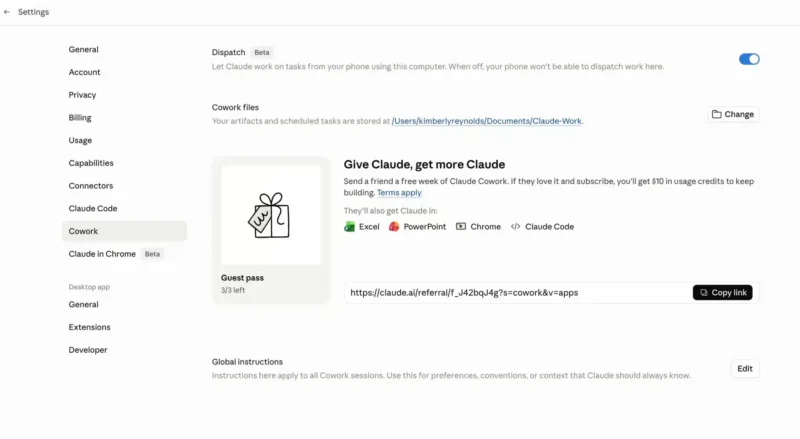
To set global instructions: open Settings > Cowork in Claude Desktop, click Edit next to Global Instructions, type your instructions, and click Save. That is the complete process. Anthropic’s official Cowork documentation confirms this is the correct navigation path as of the April 2026 general availability release.
Set Your Cowork Files Location First
Before you write your global instructions, check one more setting in the same panel: Cowork files. This is separate from your project folder. It controls where Cowork stores artifacts and scheduled task outputs, and it defaults to wherever Cowork decides unless you change it.
In Settings > Cowork, look for the Cowork files section just below the Dispatch toggle. It shows the current storage path with a Change button next to it. Click Change and point it at your Claude-Work folder. This ensures everything Cowork generates — artifacts, scheduled outputs, and anything produced outside a project — lands in a location you control and can find.
A strong global instructions block covers four things: who you are (brief, one or two sentences), where to find your context files and which ones to read first, output defaults (file naming conventions, save location, format preferences), and behavior rules (when to ask before acting, when to flag uncertainty, what “done” means to you).
Here is an example structure that works well:
You are my working partner in this workspace. At the start of every session, read Context/about-me.md, Context/my-voice.md, and Context/my-rules.md in that order before doing anything else. Save all finished work in Outputs/ under a subfolder named after the project. If the goal, audience, or output format is unclear, ask before starting. Do not invent facts, numbers, or approvals. Make uncertainty visible. Do not delete any files without explicit confirmation from me.
Keep the global instructions under 500 words. Longer instructions start competing with your actual task context for space in Cowork’s context window.
Step 5: Install Plugins and Connect Your Tools
The next step to set up Claude Cowork for your role is installing plugins. Plugins bundle role-specific skills, connectors, and sub-agents into a single installable package. Anthropic ships eleven official plugins covering Productivity, Sales, Customer Support, Product Management, Marketing, Legal, Finance, Data, Enterprise Search, Bio Research, and Plugin Management. All eleven are open-source in Anthropic’s knowledge-work-plugins repository on GitHub.
Install plugins from the in-app Customize section or from claude.com/plugins. You can install all eleven simultaneously. Start with the Productivity plugin plus one role-specific plugin that matches your work. The Marketing plugin covers content drafting, campaign planning, and brand voice enforcement. The Sales plugin covers prospect research, call prep, and outreach drafting.
| Your Primary Role | Recommended Plugin Combination |
|---|---|
| Content / Marketing | Marketing + Productivity |
| Sales | Sales + Productivity |
| Analyst / Data | Data + Productivity |
| Founder / Operator | Finance + Productivity |
| Legal / Compliance | Legal + Productivity |
💡 Pro Tip: Each installed MCP server inside a plugin consumes context tokens on every request. Install only what you use. Disconnect idle connectors with /mcp to reclaim context space for your actual work. More plugins does not mean better results. It means less context window available for the task.
Connectors give Cowork live access to external tools. Connect your most-used services first. Google Workspace covers Drive, Gmail, and Calendar. The Microsoft 365 connector covers Outlook, OneDrive, SharePoint, and Teams. Slack and Jira are also officially supported. Notable gaps as of May 2026: Trello, Monday.com, ClickUp, and Asana do not have official connectors. You can wire them up via custom MCP servers, but plan for some setup work.
Connect services in Settings > Connectors. Connect Google Workspace or Microsoft 365 first, whichever you use more. Add Slack if you live there. Then add anything else your role requires. For anyone managing AI-driven workflows for ecommerce brands, see how we approach AI marketing workflows that extend beyond a single tool.
Step 6: Run Your First Task the Right Way
Your first task should be something low-stakes on non-critical files. This is not timidity. It is the correct onboarding sequence for any autonomous agent with write access to your computer. Build trust through small wins before handing Cowork anything mission-critical.
Before running your first real task, make sure your three context files are in place. If you created them yourself, save them to your Claude-Work/Context folder. If you downloaded them, move them there now. You should have three files at these exact paths before continuing: Claude-Work/Context/about-me.md, Claude-Work/Context/my-voice.md, and Claude-Work/Context/my-rules.md.
Now create your project. Click “Work in a project” at the bottom of the task input area, then select “Create new project.” Give it a clear name — something like “My Content Work” or your business name. When prompted to choose a folder, select your Projects folder inside Claude-Work. Your project is now set up and will appear in the left sidebar for every future session.
With your project created and context files in place, give Cowork this as your very first task:
“Read the three files in the Context folder and tell me what you know about me and how I work.”
That is it. No file editing, no outputs, no risk. You are simply confirming that Cowork can find and read your context files before you hand it anything real. If it reads them correctly and reflects your role, voice, and rules back to you accurately, your setup worked. If something is missing or wrong, fix the context files now before building anything on top of them.
Once context is confirmed, your second task should still be low-stakes. Pick something with files you can afford to lose — a test document, a draft, anything disposable. Describe the outcome you want clearly: “Summarize the document in Projects/[filename] and save the summary as Outputs/[filename]-summary.md.” Cowork handles the steps. Your job is to specify the deliverable and the destination.
A note on your folder structure: Cowork may have automatically created an Artifacts folder inside your project directory when you set up your project. That is normal, leave it alone. The Scheduled folder will also appear automatically when you create your first scheduled task.
How to write tasks that produce good output: describe the outcome you want, not the steps to get there. “Create a formatted expense report from the receipt screenshots in Projects/Finance and save it as Outputs/Finance/expense-report-may.xlsx” works better than “look at the receipt images, then add them to a spreadsheet, then format it.” Cowork handles the steps. Your job is to specify the deliverable.
Cowork displays progress indicators throughout the task. You can monitor each step or step away entirely. If something looks wrong mid-task, stop it immediately. The permission mode selector controls how Cowork handles approvals during a session. “Ask before acting” pauses for your approval at each step. “Act without asking” moves faster but increases risk. Use “Ask before acting” until you understand how Cowork behaves with your files.
Step 7: Set Up Scheduled Tasks
Scheduled tasks let you describe a recurring job once and have Cowork run it automatically on a schedule. This is where Cowork’s delegation capabilities move from useful to genuinely transformative. A newsletter digest waiting for you every morning. A weekly report that compiles data from connected sources and saves to Outputs before your Monday standup. Any repetitive task that follows the same pattern every day or every week belongs on a schedule.
How to Create a Scheduled Task
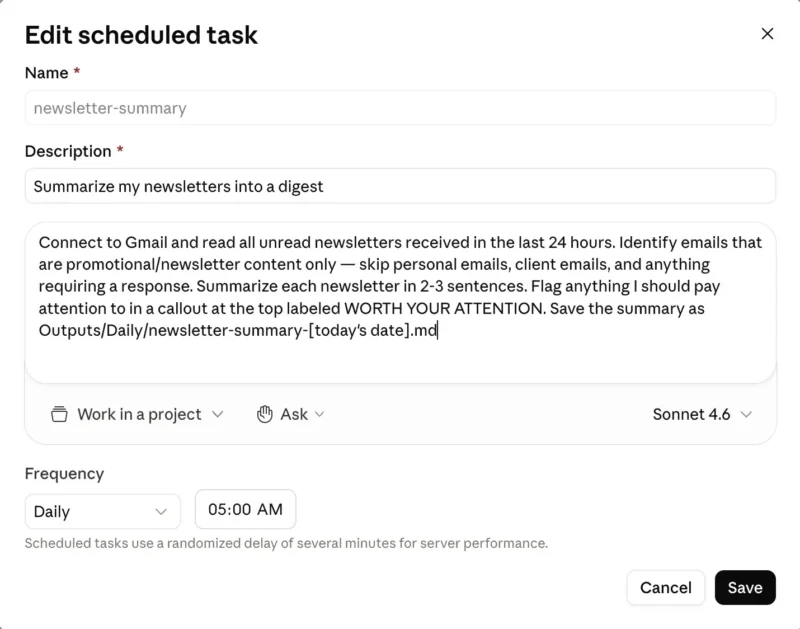
Click Scheduled in the left sidebar of Cowork. Note: the /schedule command does not work. Go directly to the sidebar. Click the button to create a new scheduled task. A modal appears with the following fields:
- Name (required) — a short identifier for the task, e.g. newsletter-summary
- Description (required) — a plain English summary of what the task does, e.g. “Summarize my newsletters into a digest”
- Instructions — the full task prompt, written exactly as you would write a manual task. Be specific about what to read, what to produce, and where to save it.
- Work in a project — select your project so the task has access to your files and context
- Frequency — Daily, Weekly, or custom. Set the time using the time picker.
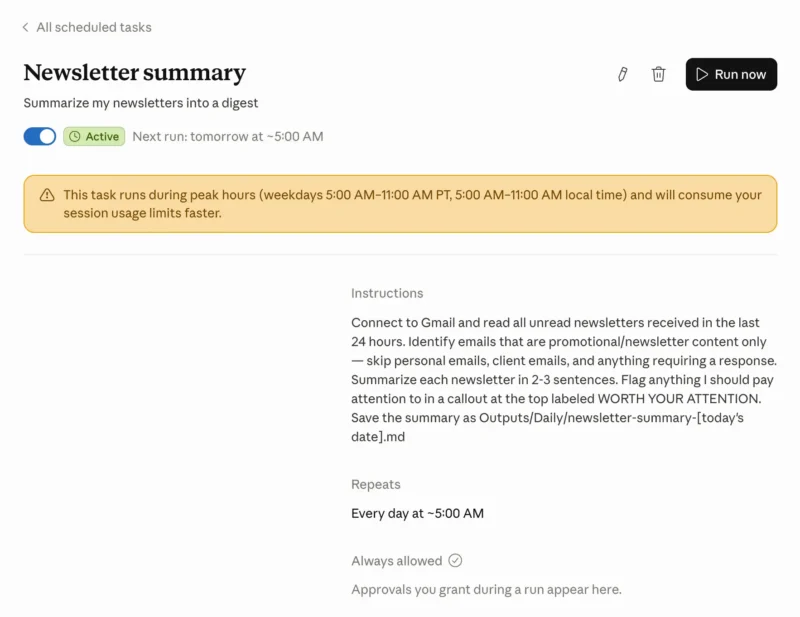
⚠️ Important: Cowork warns that tasks running during peak hours (weekdays 5:00 AM to 11:00 AM PT) consume your session usage limits faster. Schedule recurring tasks for off-peak hours. 2:00 AM works well for overnight digests that are ready when you wake up. Scheduled tasks also use a randomized delay of several minutes, so a 2:00 AM task may run at 2:04 AM or 2:07 AM.
Example: Daily Newsletter Summary
Here is a real scheduled task instruction that works with the Gmail connector:
Connect to Gmail and read all unread newsletters received in the last 24 hours. Identify emails that are promotional/newsletter content only — skip personal emails, client emails, and anything requiring a response. Summarize each newsletter in 2-3 sentences. Flag anything I should pay attention to in a callout at the top labeled WORTH YOUR ATTENTION. Save the summary as Outputs/Daily/newsletter-summary-[today’s date].md
Once saved, the task shows as Active with the next scheduled run time displayed. You can toggle it on or off, edit it, delete it, or click Run now to test it immediately without waiting for the scheduled time.
💡 Pro Tip: Keep scheduled tasks narrow in scope. “Summarize unread newsletters from the last 24 hours and save to Outputs/Daily/newsletter-summary-[date].md” runs reliably. “Manage my inbox” does not. The more precisely you define the outcome and the output file path, the more reliably the scheduled task executes without intervention.
Step 8: Set Up Dispatch for Mobile Control
Dispatch pairs the Claude mobile app with your desktop Cowork session so you can assign tasks from your phone. Your desktop processes the task locally using your files, plugins, and connectors. Your phone sends the instructions and receives the results. One persistent conversation thread connects both devices.
⚠️ Security note: Dispatch is currently in Beta. It requires your computer to stay awake and Claude Desktop to remain open, which means your machine is accessible remotely via your phone. Toggle Dispatch off in Settings > Cowork when you are not actively using it. Also make sure your phone is secured with a passcode or biometrics. A vague or unreviewed task sent from your phone carries the same risk as one sent from your desk.
Setup takes under two minutes. Update both Claude Desktop and the Claude mobile app to the latest version. Open Cowork on your desktop and click “Dispatch” in the left sidebar, then click “Get started.” Review the permissions screen and confirm. Open the Claude mobile app. You will see the Dispatch thread waiting for you. Type a task and watch your desktop execute it.
What Dispatch does well: quick, well-scoped tasks like pulling a document, summarizing an email thread, packaging files for a meeting, or extracting a number from a report. You text the task from your phone while you are away from your desk, and finished work is waiting when you return. What Dispatch does less reliably: complex multi-app workflows succeed roughly half the time in current testing. Start with simple file and data tasks before building multi-step phone-triggered automations.
One practical requirement: your computer must be awake with Claude Desktop open for Dispatch to work. Setting your machine to never sleep turns it into a persistent remote work station. If your machine sleeps, Dispatch stops until both devices are active again.
Safety Rules You Should Read Before You Touch Any Files
Cowork has real write access to your files and can take actions that cannot be undone. Anthropic is explicit about this in their official documentation, and early adopter incidents confirm the risk is real.
The most important safety rules:
- Never grant Cowork access to folders containing irreplaceable files. One documented incident resulted in a user losing approximately 15,000 family photos when Cowork identified what it thought was an empty directory and deleted it. Terminal deletions bypass the macOS Trash entirely. iCloud’s 30-day retention saved most of the photos in that case, but not all.
- Never ask Cowork to “clean” or “organize” a folder without a backup in place. “Clean up” is ambiguous. Cowork may interpret it more aggressively than you intend. Instead, ask it to move files to a review folder that you empty manually.
- Use “Ask before acting” mode when working with new tools or unfamiliar files. Both permission modes require explicit confirmation before permanent file deletion, but “Ask before acting” gives you the opportunity to review every action before it happens.
- Be aware of prompt injection risk. Security researchers have demonstrated attacks where malicious content in a file or web page tricks Cowork into taking unintended actions. When using “Act without asking” mode, you would not see the manipulation mid-task. Treat Cowork like a capable new hire: useful, but you review what they touch until you trust the pattern.
- Monitor your token usage. A single session can run through a significant portion of your plan’s allocation. Check Settings > Usage regularly if you are on Pro. Batch related work into single sessions and use standard chat for anything that does not require file access.
The Bottom Line on How to Set Up Claude Cowork
The gap between Cowork that disappoints and Cowork that delivers is almost entirely setup. The 30-minute investment in folder structure, context files, global instructions, and a first task that builds trust pays back in every session that follows. Users who skip the setup and treat Cowork like a chatbot consistently report frustration. Users who take the time to set up Claude Cowork properly consistently report finishing multi-hour tasks in minutes.
Work through the steps in order. Install first, build the folder structure before granting any access, create the context files before running the first real task, and add plugins and connectors only after the core setup is stable. The sequencing matters because each step builds on the previous one. Context files without global instructions do not load automatically. Connectors without plugins do not have the right skills to use them well.
Start with one folder, one plugin, and one connector. Run five small tasks before handing Cowork anything you cannot afford to lose. Then scale up. Cowork rewards setup. It compounds with use. The version of Cowork you have in three months, with refined context files and a library of scheduled tasks, is meaningfully different from the version you have on day one. Build the foundation now.
🎯 Want AI Actually Running Your Marketing Work?
We help marketing teams and ecommerce brands move from AI as a question-answering tool to AI as a work execution system. Let’s talk about what that looks like for your stack.
No obligation. 30 minutes. Walk away with a clear picture of what’s possible.
Frequently Asked Questions About Setting Up Claude Cowork
Is Claude Cowork free?
No. Claude Cowork requires a paid subscription. The free tier does not include access. Pro at $20 per month is the entry point. Max 5x at $100 per month is the practical minimum for daily use because Cowork tasks consume 50 to 100 times more tokens than standard chat.
What are the system requirements for Claude Cowork?
Claude Cowork runs on macOS with Apple Silicon or Intel with virtualization support, and Windows 10 version 1909 or later (x64 only) or Windows 11 with Hyper-V enabled. Linux is not supported. The Claude Desktop app is required on all platforms.
Does Claude Cowork remember previous sessions?
Memory is supported within Projects in Cowork but does not carry over between standalone sessions. Context files stored in a folder you point Cowork at, combined with a global instruction to read them at the start of every session, give Cowork persistent knowledge about you across sessions.
What is the difference between global instructions and folder instructions?
Global instructions apply to every Cowork session regardless of which folder you are working in. Folder instructions apply only when Cowork operates inside a specific directory. Use global instructions for identity, voice, and output defaults. Use folder instructions for project-specific context like client briefs or naming conventions.
Is it safe to give Claude Cowork access to my files?
Cowork is sandboxed and can only access folders you explicitly grant. The risk is within those folders. Never grant access to folders containing irreplaceable files, always have backups before running organization tasks, and use Ask Before Acting mode when working with unfamiliar workflows.
What is Dispatch in Claude Cowork?
Dispatch is a feature that pairs the Claude mobile app with your desktop Cowork session. You send a task from your phone, and Claude executes it locally on your desktop using your files, plugins, and connectors. Your computer must be awake with Claude Desktop open for Dispatch to work.
What are scheduled tasks in Claude Cowork?
Scheduled tasks let you write task instructions once and have Cowork run them automatically on a set schedule. Click Scheduled in the left sidebar to create one. The /schedule command does not work. Your computer must remain awake with Claude Desktop open for scheduled tasks to execute.
What plugins does Claude Cowork include?
Anthropic ships 11 official plugins: Productivity, Sales, Customer Support, Product Management, Marketing, Legal, Finance, Data, Enterprise Search, Bio Research, and Cowork Plugin Management. Install them from the Customize section in Claude Desktop or from claude.com/plugins.
Can I use Claude Cowork on mobile?
Cowork itself runs only on the Claude Desktop app for Mac or Windows. Pro and Max users can use Dispatch to send tasks from the Claude mobile app, which then execute on their desktop. You cannot run a full Cowork session from a phone alone.
What tools can Claude Cowork connect to?
Official connectors as of May 2026 include Google Workspace, Microsoft 365, Slack, Jira, DocuSign, Apollo, Clay, Outreach, Similarweb, FactSet, LegalZoom, Harvey, and WordPress. Trello, Monday.com, ClickUp, and Asana do not have official connectors yet.
